Best Document Collaboration Tools
The hidden cost of scattered document work
Document collaboration falls apart when files move through email, chat, local downloads, and private folders. One person edits the wrong draft. Another person leaves feedback where no one sees it. A manager approves a file that changed again two hours later.
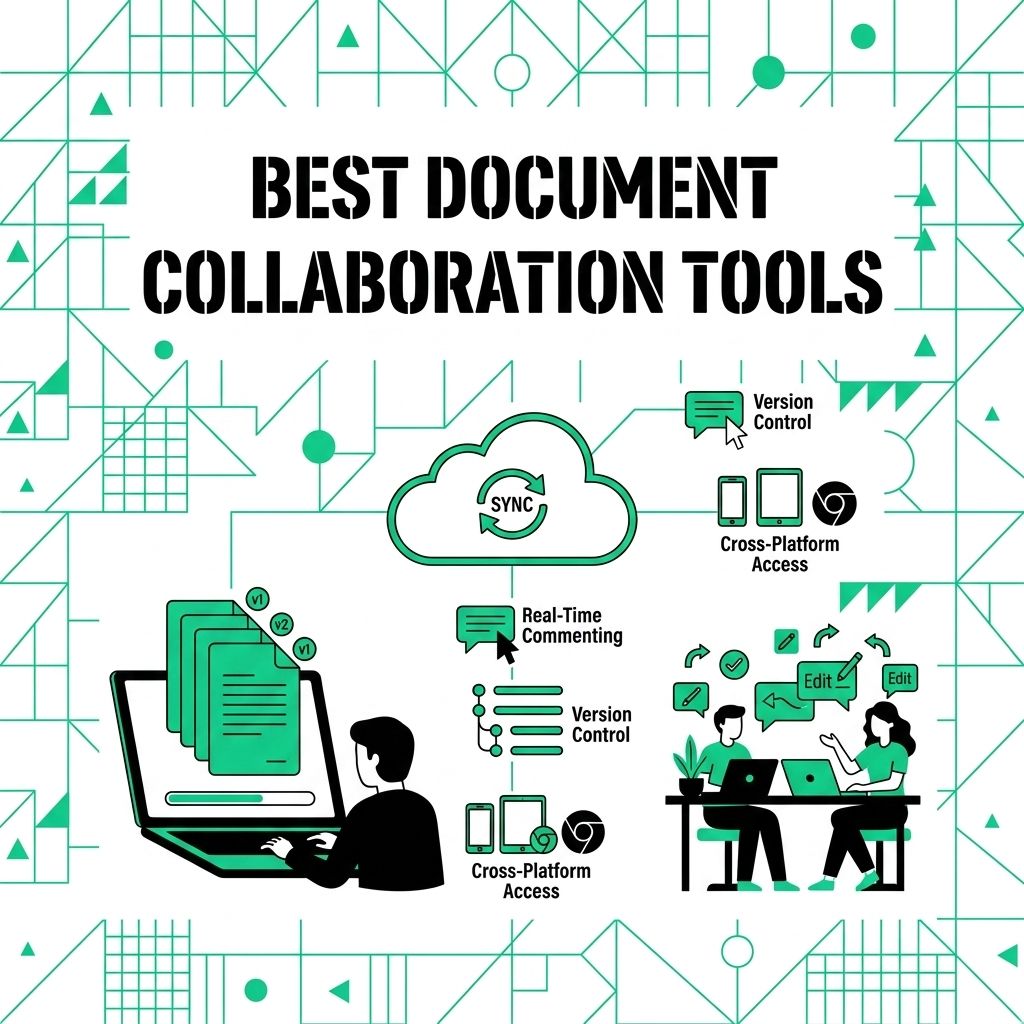
A good document collaboration tool keeps the draft, comments, edits, approvals, and version history close together. The right choice depends on what your team creates most often.
Core features that matter
Before you compare tools, define what your team needs from the document after everyone touches it. A quick sales proposal, internal wiki page, legal policy, and support article all need different controls.
- Real-time editing: Let more than one person work in the file without overwriting each other.
- Version history: Restore an older draft when a change breaks the document.
- Permission control: Limit who can view, comment, edit, share, or publish.
- Comments and mentions: Keep questions tied to the exact sentence or section.
- Review steps: Give managers, clients, or editors a clear way to approve the final version.
Top tools for document collaboration
Use the tool that matches the document’s job. A team wiki should not feel like a legal redline tool, and a one-page campaign brief should not need a heavy knowledge base setup.
Google Docs for fast shared drafts
Google Docs is a strong fit for quick writing, meeting notes, simple proposals, and team drafts. Google says Workspace files support real-time editing, cloud saving, and sharing with approved collaborators on its real-time editing page.
- Input: A rough draft or outline.
- Process: Teammates suggest edits, leave comments, and clean up the copy together.
- Output: A shared document that stays saved in Google Drive.
Microsoft Word for formal documents
Microsoft Word is still a practical choice for reports, policies, legal drafts, and documents with strict formatting. Microsoft Support documents real-time coauthoring for Word files saved to OneDrive or SharePoint, and its support pages cover Track Changes for review.
- Input: A formatted report, policy, contract draft, or executive document.
- Process: Reviewers use comments, tracked edits, and style rules.
- Output: A polished file ready for leadership, legal review, or publication.
Confluence for internal knowledge
Confluence works best when documents need to become part of a company knowledge base. Atlassian documentation covers page history and version comparison, which helps teams view changes and roll back pages when needed.
- Input: Meeting notes, product requirements, support notes, or internal SOPs.
- Process: Teams link related pages, add owners, and maintain page history.
- Output: A searchable internal wiki that people can keep current.
Notion for flexible workspaces
Notion fits teams that want docs, tasks, notes, databases, and lightweight project tracking in one workspace. Notion describes its product as one place for docs, notes, tasks, and team information on its wiki product page.
- Input: Scattered notes, checklists, research, and project plans.
- Process: The team arranges pages, tables, tasks, and linked context in one workspace.
- Output: A flexible team hub for docs and project context.
Document360 for customer-facing help docs
Document360 is built for knowledge bases, user manuals, and support documentation. Its official product page describes support for help articles, user manuals, SOPs, API documentation, and knowledge bases.
- Input: Product notes, support answers, and technical instructions.
- Process: Writers draft articles, editors review them, and owners publish the approved version.
- Output: A public or private help center for users and support teams.
ClickUp Docs for task-connected work
ClickUp Docs fits teams that want documents tied directly to project work. ClickUp’s help center says you can turn text from a Doc or wiki into a task, which helps move from planning to assigned work.
- Input: A campaign brief, launch checklist, or project plan.
- Process: The team writes the plan and turns key lines into tasks.
- Output: A document connected to the work people need to finish.
Tool comparison
| Platform | Best Fit | Main Strength |
|---|---|---|
| **Google Docs** | Fast team writing | Easy real-time editing |
| **Microsoft Word** | Formal business documents | Track Changes and formatting control |
| **Confluence** | Internal knowledge bases | Page history and linked wiki pages |
| **Notion** | Team hubs | Docs, tasks, and databases in one space |
| **Document360** | Help centers | Review and publishing flow for support content |
| **ClickUp Docs** | Project docs | Turns document text into assigned tasks |
How to choose the right tool
Start with the document’s final use. Will it stay internal, go to a client, become a public help article, or turn into tasks? That answer usually narrows the list fast.
Pick one main source of truth for each document type. Train the team on permissions, version history, comments, and approvals. Then keep the rule simple: if the document matters, it belongs in the tool, not in someone’s inbox.
For a related Working Nomads article, read design collaboration tools before you decide your next step.
What to Read Next
Read best remote scanner tools guide if you want a related next step on remote work tools.
Use how to ask for vacation days when you work remotely for remote workers when you need more context before your next decision.
Publishing Articles or Documentation? Remove AI Slop.
Remove repetitive AI filler phrases, robotic patterns, and AI slop to make your content human, engaging, and original.
Applying for Senior Backend Engineer Roles?
Boost your callback rate with our 100% free ATS-optimized resume template tailored specifically for remote Senior Backend Engineer positions.
Remote Backend Engineer Resume Template
Focused on API throughput, database scaling, data modeling, and fault tolerance for distributed systems.
ATS Keyword Scanner
Check your resume against remote job descriptions to find missing keywords and boost your score.
Tailored Cover Letter
Generate a personalized, high-converting remote cover letter emphasizing async communication.